
A Facebook page has several components, which you’ll want to be familiar with before launching your own page:
- Profile photo: Most brands use this space to post their logo or something that’s regularly associated with the brand. Your profile photo isn’t the biggest photo on your page, but it’s visible at eye level for whoever visits your page. (See Figure 1-1.)
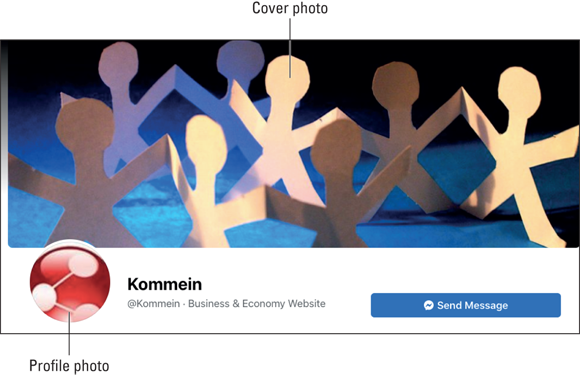 FIGURE 1-1: Use your brand’s logo for the profile photo.Make sure that you properly prepare your graphic so it doesn’t end up distorted when Facebook places the image into its pre-sized box. Facebook recommends the image be at least 180 pixels wide, and square rather than rectangular.
 - Cover photo: The biggest photo on your page, this cover photo can be a touching, amusing, or scenic image that best represents your brand and what it stands for.
- About: Includes your company’s message, mission statement, or a brief bio of who you are and what you do. Your About page should be compelling and written in an engaging style. For more on your About page, see the section “Filling Out What You’re About,” later in this chapter.
- Contact info: This section, found on the About page, should list all the ways people can get in touch with you. At the very least, it should include email addresses where your community can offer feedback. You should also include your Twitter handle, blog, or website.
- Community: Posts to the brand page by others in your online community. You can delete posts if they’re inappropriate, highlight them if they’re something you feel everyone should see, or disable this feature so that no one else is publishing to your page.
- Call to Action button: A customizable button on the right side of the page that gets people to perform an action such as contacting you or signing up for your newsletter.
- Settings page: Your Settings page (see Figure 1-2) is also your Admin panel and is where you discover how many new likes you have each week, how many people are sharing on your page, what countries people are visiting from, and more. From your Admin panel, you can learn about your community, and you can also update the content and design of your Facebook page.
- Timeline: Your brand’s public-facing Facebook page, shown in Figure 1-3, is where you post content.
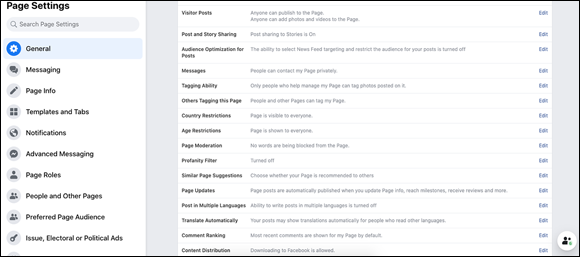 FIGURE 1-2: Your Settings page is your Facebook toolbox.
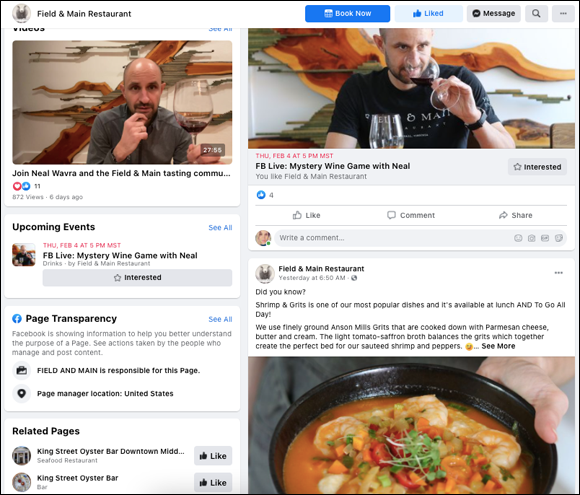 FIGURE 1-3: Your timeline is where you and your community interact.
 - Pinned posts: Posts you want to keep front and center on your timeline.
- Tabs: Extras your community can click to engage with the brand. Photo albums, video, and Events are a few of the options accessed through tabs.
Leave a Reply