
Setting up your timeline is simple and can take as little or as much time as you want, depending on how many bells and whistles you add to your profile.
Because the timeline is so visual, it’s the perfect opportunity for you to share your company’s story. In fact, with your timeline, you can go back in time to your brand’s beginning and share milestones, articles, photographs, videos, and more — all in chronological order.
Some interesting features of the timeline include the following:
- Private messaging: Allows your community to reach out and ask questions privately and then receive a personal response in return. Please note that some brands turn off the messaging feature because they’d rather not receive private messages. You can turn off the private messaging feature, but you’ll miss valuable community feedback because not everyone wants to publicly post to your wall.
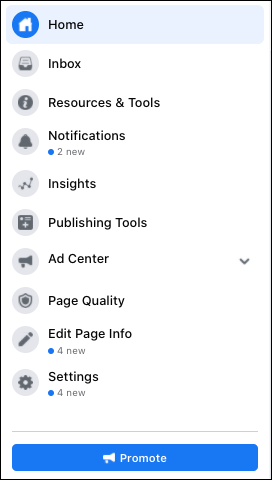
- Notifications: A number in the Admin panel on the left side of the page, shown in Figure 1-4, shows all your new notifications so that you can welcome new members by name, see who’s messaging you, know who’s posting to your timeline, and find out who’s talking about you on their own timelines.
- The capability to pin key events and photos: You can make certain content “sticky” to highlight key dates, milestones, and events.
Adding a profile picture
To set up your timeline, the first step is to upload a profile picture. Your profile picture is the small photo on the left, usually a brand logo.
To upload your profile photo, follow these steps:
- Hover your cursor on the profile image area and click the camera icon.A pop-up window appears, enabling you to choose to view a photo or edit a profile picture.
- Choose the Edit Profile Picture option and then click Upload Photo.If this is the first time you’re adding a profile image, you’ll see the placeholder image that’s the first letter of your page’s name.
- Assuming that you’re going to upload your brand’s logo, choose the file you want to upload from the File Upload window that appears.
- In Edit Profile, add a description of the photo and resize the photo (if needed) using the slider.The description will show up next to the photo if someone clicks your logo.
- Click Save to edit your profile photo.
Leave a Reply