
Should you pay to play on Facebook? Many brands are asking this very question. Because of fairly frequent changes to Facebook’s algorithm, fewer fans are seeing your Facebook posts in their news feeds. If you’re trying organic methods for growing your fans and interactions (for example, viral or more visual content) and those methods aren’t panning out, advertising might be worth looking into.
The good news for small businesses is that it’s not expensive to advertise on Facebook. You can invest as little as $1 in an ad or boosted post (as shown in Figure 3-1), or as much as hundreds of dollars. The more you spend, the more people you reach.
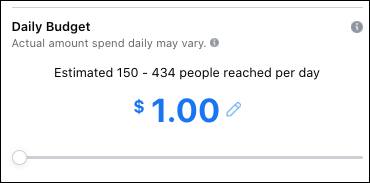
 If you’re wary of spending money on a Facebook ad, try testing the waters with a small amount. Boosting a post (we talk about that in the section “Targeting your fans,” later in this chapter) for as little as $5 or $10 is a good way to gauge if you want to advertise on Facebook on a more regular basis without putting out a large investment. You can set the price for a boosted post. So even if you have a small advertising budget, you can still see results with a lower-priced boosted post.
Facebook offers different ad choices, so it’s important to put money into the right campaign for your needs. Just as it’s important to have a Facebook content strategy (see Chapter 2 of this minibook), it’s equally as important to have a plan for advertising.
Deciding whether you want to invest in an ad
First, you need to determine what you hope to achieve with your Facebook ad. What follows is a look at some of the reasons people invest in Facebook advertising:
- More engagement on your brand page: If you have fans but no one is communicating by likes, shares, or comments, they might not be seeing your page in their news feeds. An ad can help to reach more people and up the engagement.
- More likes to your brand’s page: Sometimes a brand needs a boost to get started. Using Facebook advertising is a good way to gain new fans who wouldn’t have known your brand has a Facebook page otherwise.
- More traffic to your website: When your posts appear in more fans’ news feeds, more fans will click your blog posts, articles, and other shared web pages.
- More leads: Facebook advertising can help you bring more leads into your sales funnel.
- More messages: A Facebook ad can encourage users to contact you via Facebook Messenger.
Taking out a Facebook ad means more visibility for your brand. On your own Facebook news feed, much of the brand content isn’t shared by your friends — you’re seeing it because that page’s manager used advertising. Advertising can be targeted to people who have similar interests or friends of fans, which means more views and actions on your Facebook page.
 People can control what they see in their Facebook feeds. For example, if they find an ad offensive or annoying, they can opt to not see the ad. They can also opt to not see any posts from your brand. So try to share content that is educational, entertaining, and visually pleasing. When people enjoy your
Choosing the right goal for your Facebook ad
Different types of Facebook ads can help marketers achieve a variety of goals. Familiarize yourself with your choices so that you can see which ones best suit your needs.
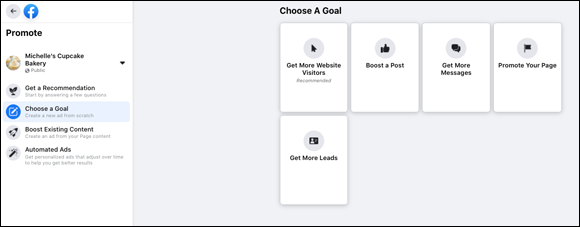
The ad types that are available to you (Figure 3-2) depend on the type of business page you selected when you first signed up, but here is a sampling of Facebook ad types:
- Get More Website Visitors: These ads are geared toward driving traffic to your website. A specific article or page on your website is highlighted, so when the reader clicks to learn more, they are taken to your website rather than your Facebook page.
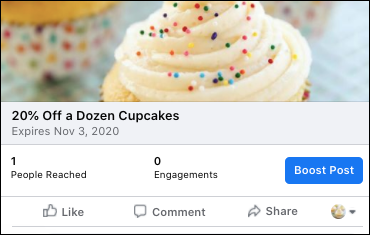
- Boost a Post: When you boost a Facebook post by clicking Boost Post, as shown in Figure 3-3, that post appears higher in your fans’ news feeds. A single post or update can have a wider reach than a post you didn’t boost. For example, if a single post normally gets 200 views, you can boost a post so it receives 2,000 views.
- Get More Messages: Encourage people to contact you via Facebook Messenger.
- Promote Your Page: Page promotion ads advertise the page itself, with a Like button included so viewers can like directly from their news feeds. You can choose to target this (and other) ads to a specific demographic or send it to friends of fans.
- Get More Leads: Get qualified leads by running ads that ask questions of responders to gauge their intent to buy.
The cost of a Facebook ad is up to you. Whether you choose to spend $1 to put your ad in front of several hundred people or hundreds of dollars to have your ad put in front of thousands of people, you set a cost you can live with.
Before investing in a Facebook ad, take some time to familiarize yourself with Facebook’s guidelines for advertisers at www.facebook.com/ad_guidelines.php. The last thing you want is to have your ad pulled or declined because it wasn’t in compliance.
Creating an ad with Ad Center
Facebook’s Ad Center is your one-stop shopping destination for Facebook ads.
To create an ad in the Ad Center, follow these steps:
- Access the Ad Center using the link in the left sidebar on your page.
- Click the Create Ad button, as shown in in Figure 3-4 .The ad goals page appears.
- Choose a marketing goal for your ad.For example, you can choose to reach more people who are already fans, boost an existing Facebook post, or add to your existing fan base. When you select a scenario, you’re taken to a window where you’re asked to perform a series of actions. For example, if you’re selecting the option to boost a post, you then select the brand page account you want to use and the post you want to boost. You’re also asked to name your campaign, select various demographics to target your ad to, and choose your budget.
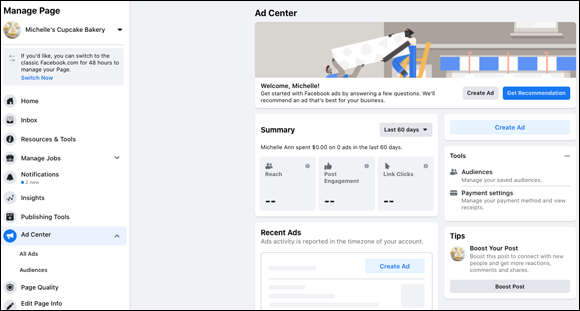 FIGURE 3-4: Facebook’s Ad Center can help you get started.
 - Fill in all the required information about your campaign.As you’re filling out all the information, the ad and audience information on the right side updates to reflect the changes.
- If everything is to your liking, click the Promote Now button.
After you create your ad, you can use the Ad Center to access analytics, print reports, and see your page history, among other functions. For example, you can see at a glance how many ads you’ve purchased and how each is performing.
Targeting your fans
One of the nicest features about Facebook advertising is the capability to target fans — or potential fans. For example, if you want to boost a post, you can target your audience as follows:
- After you create your post, click the Boost Post button, located to the bottom right of your status update (refer to Figure 3-3 ).The Boost Post page appears.
- In the left side of the Boost Post page, click the pencil icon in the Audience Details box.The Edit Audience box appears (see Figure 3-5).
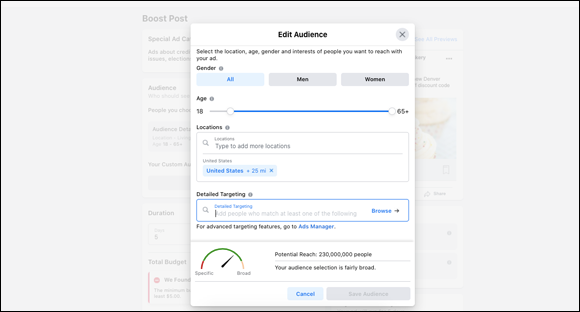 FIGURE 3-5: To reach the right people, target your ads.
 - Select options to narrow down your target audience.You can narrow your audience down by features such as gender, age, or physical location, or click the Browse button in the Detailed Targeting section to access psychographic criteria such as relationship status, education, or income level.
- Under Budget and Duration, determine the amount of money you want to spend and how long you’d like the ad to run.
- Select where you want your ad run.Your options are on either Facebook or Instagram or both.
- Choose your payment method.You can pay by credit card, add your online bank account information, use Facebook Ad credits, or pay with PayPal.
- Click Set Budget to publish your post.
 Your ad won’t start running immediately. Facebook has to review the ad first to make sure it’s in compliance. This review doesn’t take long; in most cases, your ad will run within a couple of hours.
You have the option to include a Facebook pixel with your ad to track its progress using outside websites such as Shopify or HubSpot. We recommend that you work with your developer on this because it involves connecting accounts, and if you’re unfamiliar with the concept, something may go awry, and it could have a negative effect on both the ad and the website.
Measuring Your Ad’s ROI
It’s important to know how well your Facebook ad is performing, and Facebook has the tools to help you with this. Whether you use your page’s Insights dashboard (described in Chapter 2 of this minibook) or the Ad Center dashboard, you can determine whether your investment is working.
What follows are a few of the ways to determine your ad’s return on investment:
- Regular posts versus paid posts: When you select Posts on your Insights dashboard, you receive an overview on how your posts are performing. You can also see whether a post is paid or unpaid, enabling you to make a comparison.
- Likes: When you select likes on your Insights dashboard, you can compare likes achieved during paid campaigns with organic likes.
- Reach: When you select Reach on your Insights dashboard, you can see at a glance how much of a boost a paid post received and how many people were reached as a result of that boost.
- Engagement: On your Ad Center dashboard, you can see a list of your advertising and how much engagement each received. You can even see the cost per engagement.
So how do you put all this together to determine ROI? First, it depends on your goals:
- If your goal was to receive likes to your Facebook page or to have more people see a specific post, you can analyze the numbers and determine whether you achieved the results you were hoping for. If you spent $100 and received one like, your campaign probably didn’t work for you. But if you spent $100 and received 50 likes, you have to determine whether spending $2 per like is a worthwhile investment for you.
- If you wanted to drive traffic to your website, you can easily measure your success through the Ad Center’s click-through reporting and your own website’s analytics. On days you purchased advertising, how much traffic did it send to your website, and was the amount of traffic worth the money spent? Moreover, how many of the people who came to your website as a result of the ad will continue to visit in the future? Measure traffic over time and see whether you have a nice steady rise and repeat visits as a result of your ad.You can also measure sales. If you receive traffic and no sales, the ad might need to be reworked or retargeted, or maybe Facebook ads aren’t a good fit. In this case, consider trying more than once, just to make sure. However, if you notice a rise in sales as a result of your Facebook ad, continue with this investment.
It’s important to determine whether a Facebook ad campaign is worth the investment. If you don’t take time to analyze the numbers and determine whether you’re meeting your goals, you’re throwing away money.
Selling on Facebook
It used to be that in order to sell on Facebook, you couldn’t really — err — sell. At least not on your business page. Remember what I said about “selling without selling?” Blatant, heavy-handed selling definitely turns followers off. So, it’s best to stay away from it. Or at the very least, keep it to the bare minimum and infrequently. Having said that, how do you sell on Facebook? Keep reading for the different options.
Facebook Marketplace
Facebook Marketplace (see Figure 3-6) is a free online classifieds section that you access from the left sidebar on your Facebook profile. People utilize the marketplace the way they do Craigslist, except on Craigslist you can advertise services such as lawn care or house cleaning. On Facebook Marketplace, you can sell only items and vehicles, and rent or sell homes. Occasionally people go against Facebook’s Commerce Policies (www.facebook.com/policies/commerce), but if you’re caught, your ad will be removed and you run the risk of being banned from posting altogether.
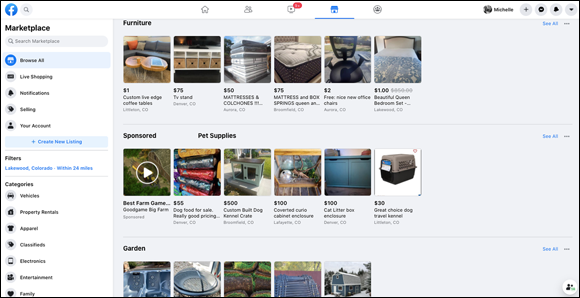
Don’t take chances by trying to sell prohibited things. You could lose your Facebook business page and all the hard work you put into building it. Besides, there are other ways to sell on Facebook that are within the rules, and we discuss those in the following section.
There are a couple of unique features that set Facebook Marketplace apart from other online classified sites. One of those features is called Live Shopping, where merchants utilize Facebook Live to talk about their wares. Think of it as the Facebook version of the Home Shopping Network. Figure 3-7 shows a number of merchants who are currently online selling their items.
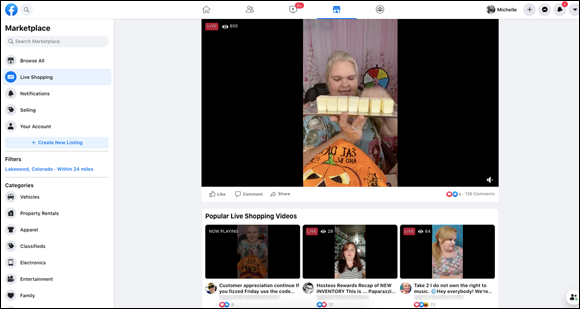
When you’re selling to a live audience on Facebook, your video feed appears similar to a regular Facebook post, giving visitors the opportunity to like, comment on, and share your live feed, all in real time! This is a great way to interact with potential customers and “put a face” to your business.
When people comment on your post, you can see the different items that seem to be a hit with viewers and the items that aren’t getting a great response. This gives you insight into the types of products that resonate well with this particular audience.
While you’re live on camera, have another person moderating the comments section in case questions are being asked. If there are, you can answer them on camera, because others may have those same questions. This is also a great opportunity to get ideas about future content to post about! For more information about using Facebook Marketplace for your business, check out their help page at www.facebook.com/business/help/289268564912664?id=150605362430228.
Shop Now button
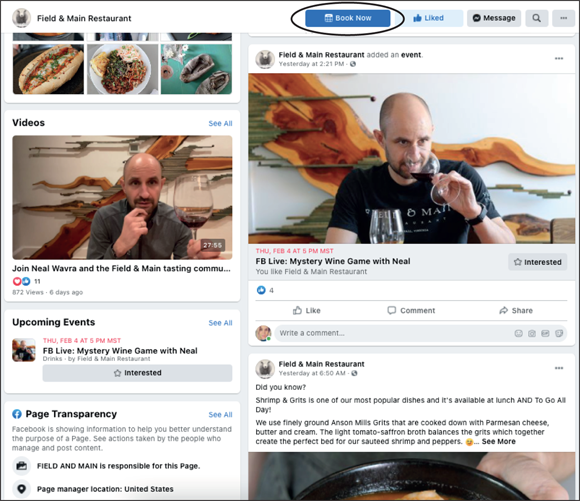
Another way you can sell on Facebook is to not sell on Facebook. This is the perfect option if you have an existing e-commerce option on your business’ website. If that’s the case, all you have to do is navigate to your business page on Facebook, click the blue + Add a Button button on the bottom right of your header image, and select the Shop Now option all the way at the bottom. A pop-up box appears in which you enter in your e-commerce’s site URL. After you do that and click the Save button, you have your very own Shop Now button, like the one shown in Figure 3-8, for people to click to be taken to your website.
Facebook Shops
Facebook Shops lets you sell items directly on Facebook and, as is the case with the Shop Now button, you can send people to your website from your shop to complete their purchase.
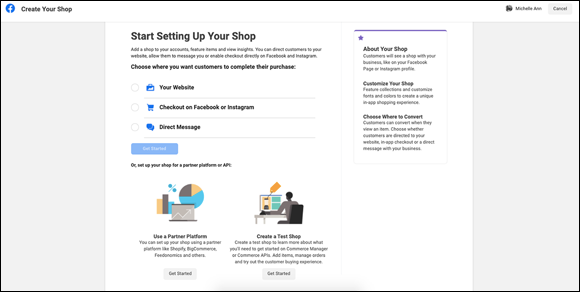
If this is the first time you’re setting up a shop, you have to do so by using the Commerce Manager (see Figure 3-9) that can be found at: www.facebook.com/commerce_manager/onboarding_landing.
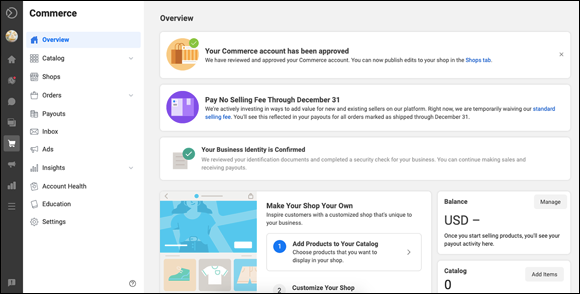
At the Commerce Manager, you’re given the option to send customers to your website to complete their purchase or let them do it directly on Facebook or via direct message (see Figure 3-9). After you complete the setup of your Commerce account (see Figure 3-10), you can begin to set up your shop. If you’re using a third-party e-commerce platform like Shopify, you go through a different process. Click the Get Started button at the bottom of the page to begin.
For detailed information about setting up and running Facebook Shops, head over to their help page: www.facebook.com/business/help/268860861184453?id=1077620002609475.
Leave a Reply