
Facebook allows you to have a detailed look at the activity on your brand’s page with several administrative features. In this section, we discuss two of the most important links that appear in the left sidebar: Settings and Insights. Both of these sections are chock-full of the information needed to provide your Facebook community with a positive user experience.
Settings
The Settings section can be found at the very bottom of the sidebar, and here are some of the most common functions you’ll utilize:
- General: The General section of the Page Settings sidebar is kind of a catch-all of administrative functions including turning on (or off) messaging, country and age restrictions, page moderation (whether or not you want to approve visitor posts before they’re live), and posting language and tagging ability (whether or not everyone is allowed to tag photos on your page).
- Messaging and Advanced Messaging: If you choose to have the messaging option available, your fans can send you messages that no one else can see. Your notifications tab will tell you when you have a new message. Advanced Messaging is when you utilize a bot to automatically reply to messages. Bots are a great way to instantly acknowledge a message, and you can customize the message to say, for example, that someone will reply to their message within 24 hours.
- Page Info: If you didn’t add information like your business description, contact information, hours of operation, or address when you set up your page, this is where you’ll add (or edit) it.
 Try to include as much information about your business as possible. If your business has a physical location and you are targeting a local audience, it’s important that you include things like your address and even your service area so that potential customers know that they can stop in and shop in person.
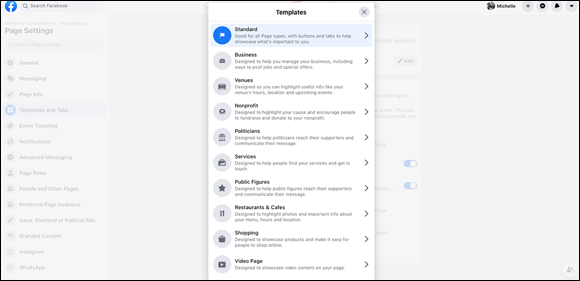
 - Templates and Tabs: It used to be that once you selected a page type in the beginning, you were bound to that page type and whatever functionality was built in. That’s no longer the case, as you can see in Figure 1-5. The default template is the Standard one; however, you can select any from that list to customize your page. When it comes to Tabs, this is another place that you can add and edit existing tabs (the other place is under the More option in the menu bar on your home page).
- Notifications: When there’s new activity on your page, a red button appears at the Notifications link in the left sidebar of the page. The button also displays a number indicating how many activities have occurred.
- Page Roles: If you want to add or remove admins and contributors to your page, this is where you can do it.
 This is only a fraction of the functionality under the Settings link in your page’s sidebar, so be sure to click through the other options to get a feel for everything your page has to offer.
Insights
The Insights section shares important analytics details for Facebook page administrators. Here are a couple of the metrics that are important to monitor:
- Likes: In which you can see how many new likes your page received and view a graph showing your page’s likes over time.
- Ads: If you’re running ads on Facebook, this section is where you see all the details about the performance of your ads as well as where you can make adjustments. For example, it gives a rundown of how many people saw your brand’s Facebook ad and what actions, if any, they performed. (We discuss Facebook Advertising in detail in Chapter 3 of this minibook.)
- Page Views: How many people are seeing your page? What sections are visited the most? Is there one country that visits your page more than others? You can answer these questions and more via this section.
- Posts: Analyzes your Facebook content, helping you to determine the best types of content to post, as well as the best times of the day and days of the week to post. You can also boost posts directly from this page, which is helpful if you want to promote a particular post — for example, a post about an upcoming sale or event.
Before launching your brand’s Facebook page, take some time to explore all the administrative features and learn how to use them. The last thing you want to do is fly blindly.
Leave a Reply